Patient transfers (for multi-site organisations)
This article explains how multi-site organisations can transfer patients from one site to another, view transfer history, and cancel a transfer.
Only administrators can transfer patients.
Patients can only be transferred between sites within the same organisation.
Patients cannot be transferred again during the 7-day grace period.
After transfer, previous sites will not be able to view the patient record.
Patients cannot be transferred to a site where they already exist.
Transferring a patient
Navigate to the Patients page
Click the “Transfer” tab
Click the “Initiate transfer” button in the top-right corner
Select the patient from the list
Choose the destination site
Choose the destination ward
Provide detail for the reason the patient is being transferred [optional]
Click Confirm transfer
*You can also transfer a patient from the patient list and patient profile using the overflow menu (three dots).
What happens when a patient is transferred?
When a transfer is confirmed:
The patient appears at the destination site immediately
Tags are removed
Bookmarks are cleared
Discharged patients are automatically re-admitted
A transfer record is created for audit history
Viewing transfer history
Go to Patients → Transfers to view all inbound and outbound transfers.
Inbound - Patient arrived at your site.
Outbound - Patient left your site.
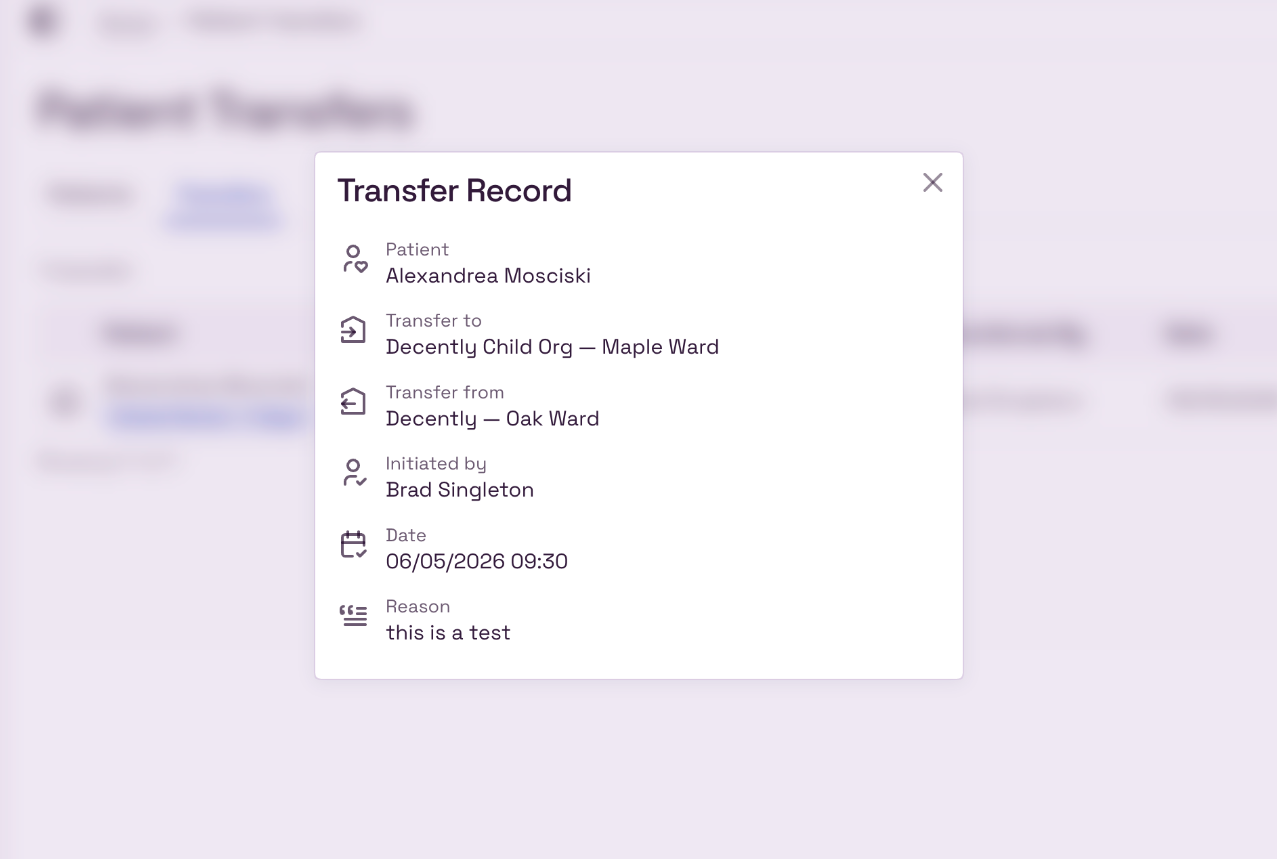
You’ll see:
Transfer direction
Patient name
Transfer status
Sites/wards involved
Staff member who initiated the transfer
Transfer date
Transfer reason (if added)
Use the overflow menu (three-dots) to view the full transfer record.
Transfer statuses
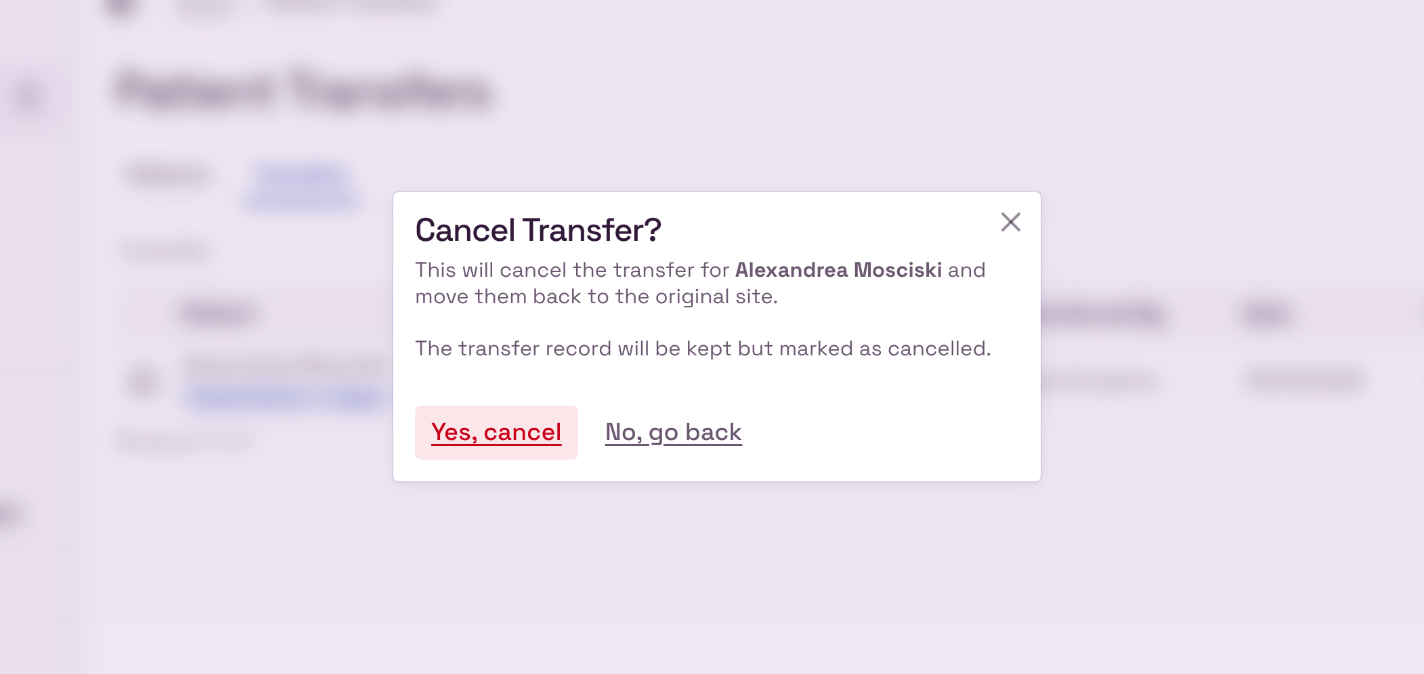
Cancelling a transfer
Transfers can be cancelled within 7 days.
Open Patients → Transfers
Find the transfer
Select Cancel transfer from the menu
Confirm the cancellation
When cancelled:
The patient returns to the original site and ward
Tags/bookmarks are cleared again
The transfer remains visible in history for audit purposes