How to fix "400 Bad Request" error

If you're experiencing a blank page or an error when accessing Melo, clearing your browser cookies will resolve the issue. To clear cookies, please follow the steps below in your browser (not app view). After clearing cookies you will need to log in again.
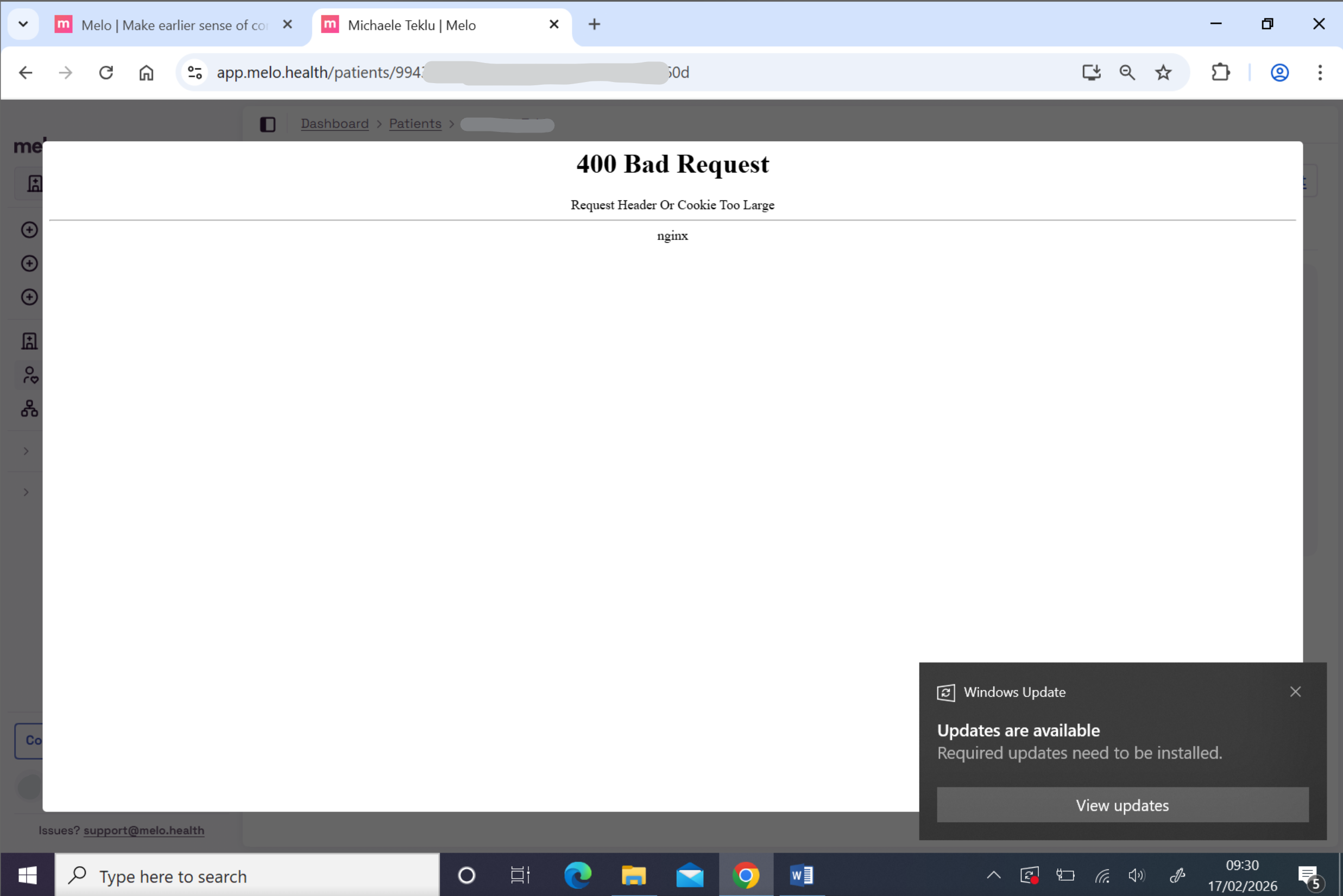
Screenshot on windows desktop of a 400 bad request error inside Melo

πŸ’» Desktop

Google Chrome

  1. Press Ctrl + Shift + Del with the browser open

  2. Check "Cookies and site data"

  3. Click "Delete"

  4. Refresh the page

Safari

  1. Go to Safari > Settings > Privacy

  2. Click "Manage Website Data"

  3. Search for the Melo site domain

  4. Select it and click "Remove"

  5. Refresh the page

Firefox

  1. Click the padlock icon in the address bar

  2. Click "Clear cookies and site data"

  3. Click "Remove" to confirm

  4. Refresh the page

Microsoft Edge

  1. Click the padlock icon in the address bar

  2. Click "Cookies and site permissions"

  3. Click the trash icon next to the site's cookies

  4. Refresh the page

πŸ“± Mobile

Safari (iPhone / iPad)

  1. Open Settings

  2. Scroll down and tap Safari

  3. Tap "Clear History and Website Data"

  4. Tap "Clear History and Data" to confirm

  5. Re-open Safari and navigate to Melo Note: This clears cookies for all sites. To clear only Melo's cookies:

  6. Open Settings > Safari > Advanced > Website Data

  7. Search for the Melo site domain

  8. Swipe left on it and tap "Delete"

Chrome (Android)

  1. Open Chrome and tap the three-dot menu (top right)

  2. Tap Settings > Privacy and security > Delete browsing data

  3. Select "Cookies and site data"

  4. Tap "Delete data"

  5. Navigate back to Melo Note: To clear only Melo's cookies:

  6. Navigate to the Melo site

  7. Tap the padlock icon in the address bar

  8. Tap "Cookies and site data"

  9. Tap "Delete cookies"

Chrome (iPhone / iPad)

  1. Open Chrome and tap the three-dot menu (bottom right)

  2. Tap Settings > Privacy and security > Clear Browsing Data

  3. Select "Cookies, Site Data"

  4. Tap "Clear Browsing Data"

  5. Navigate back to Melo